
The Help Scout add-on creates a conversation from an accepted Logical Forms submission. Configure a site-wide connection once, then add feeds to individual forms. Each feed chooses its inbox, customer mappings and conversation content. The extension needs a compatible Logical Forms core; conditional action rules require Pro.
Connect the site
Create an app for your own Help Scout account, then save its credentials in Logical Forms. The add-on uses Help Scout's internal Client Credentials flow.
- Sign in to Help Scout as an active user with access to the inbox you want to use.
- Open Your Profile → My apps → Create My App. Give the app a recognizable name, such as Logical Forms.
- If the app form requires a Redirection URL, enter your website's HTTPS homepage. This integration does not send the browser to that address for authorization.
- Create the app and copy its App ID and App Secret.
- In WordPress, open Logical Forms → Settings → Help Scout. Enter the App ID and App Secret, then select Save settings.
- Select Test connection. This checks access to inboxes; it does not create a conversation. Confirm the intended inbox is available before configuring a form's Help Scout feed.
For Help Scout's current app-creation instructions, see Help Scout authentication (opens in a new tab).
Keep the App Secret private. The native password control retains the saved secret when left blank; use its explicit removal control when disconnecting. An inbox absent from the picker can reflect the app owner's access rather than a form-field problem.
Add a form feed
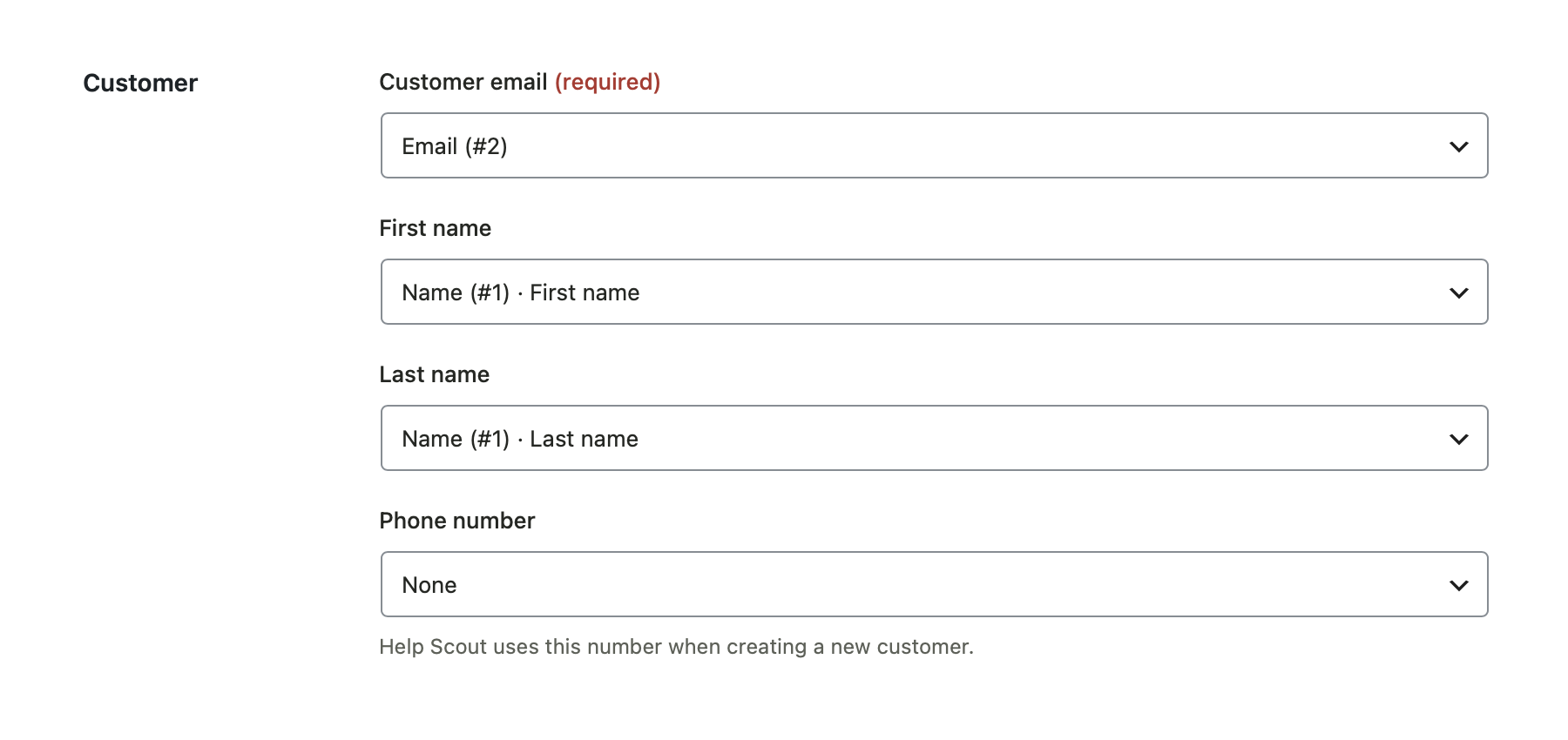
Save your form fields, open its Help Scout settings and add a named feed. Select Inbox and map Customer email to a suitable Email field. Configure these controls before enabling and saving:
| Setting | What it does |
|---|---|
| Inbox / Assignee | Choose the destination inbox and optionally a Help Scout user with access to it. Do not assign leaves the conversation unassigned. |
| Conversation status / type | Status: Active (default), Pending or Closed. Type: Email (default), Chat or Phone. The selection describes the created conversation, rather than installing live chat on the form. |
| Customer email | Required field mapping. Use a valid submitted customer address; this is separate from your site's WordPress mail-sender address. |
| First name / Last name / Phone number | Optional compatible field or Name-part mappings. The phone number is used when creating a new customer. |
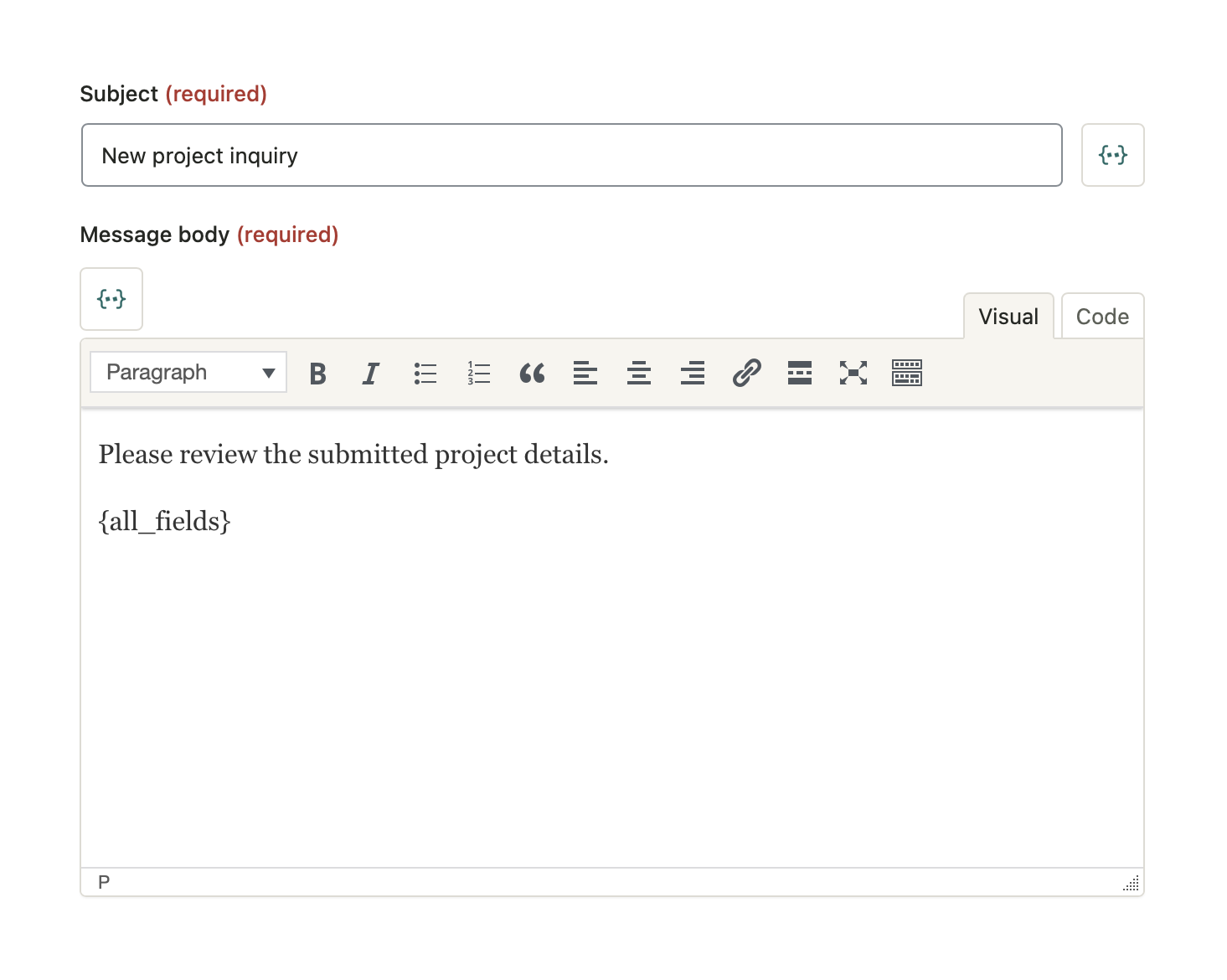
| Subject / Message body | Required templates. Defaults are {form_title} and {all_fields}. Use the merge-tag picker for specific answers. Message body supports the editor's permitted formatting. |
| Tags / CC | Comma-separated tags or email addresses. Tags and templates can use merge tags. Include only information intended for the conversation audience. |
| Private note | Optional team-only note, with permitted formatting and merge tags. Leave blank to skip it. |
| Attachments | Appears for eligible File Upload fields. Select which committed entry files to attach; there is a 10 MB combined attachment budget and an individual file limit. |
Attachments and content boundaries
The integration reads committed files from the selected fields, not arbitrary remote URLs. Keep each file below 10 MB and the combined selection at or below 10 MB. Unavailable or disallowed files can be omitted, and the outcome records attachment issues. A form's larger upload limit does not raise the Help Scout attachment budget.
All-fields summaries follow the shared audience rules. Review any explicit field tags before including Internal or other sensitive answers. The private note is visible to the Help Scout team; the customer-facing conversation message has a different audience.
Check the entry outcome
The entry's Help Scout card and Activity show queued, creating, created, failed, skipped or unavailable outcomes. A recorded conversation includes its link and creation time. Conditions did not match means the feed was skipped, rather than a delivery failure.
A timeout can leave an uncertain outcome even when Help Scout created the conversation. Check the inbox before using Retry. For an uncertain run, the interface requires acknowledging that a retry could create a duplicate. Retry uses the retained queued payload; changing mappings is not a promise that an old attempt adopts them. See action delivery and retry for retained-payload limits.
Test without surprising your support team
Use a dedicated test form and a clearly identified test message when you are ready to send a real conversation. First test the saved connection, field mappings and feed configuration. Then make one controlled submission and inspect its entry and Help Scout result. Connection testing alone does not prove conversation creation or attachment delivery.
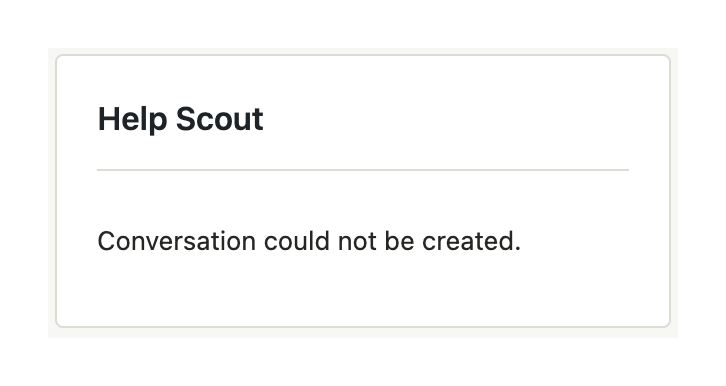
For errors, check the connection, inbox and assignee access, valid Customer email, template content and attachment sizes. Check the queued outcome before submitting again or retrying.