
Use Address to collect a structured postal or street address. It contains Address line 1, Address line 2, City, State / Province / Region, ZIP / Postal code and Country. It does not by itself geocode or verify delivery to that address.
Availability: Core (Free).
Add and configure the field
- Open the form in Build and add Address from Add fields.
- Select its canvas card to open Field options, then configure the controls below.
- Save the form and check its saved Preview and embedded page.
Field-specific settings
| Setting | What it does |
|---|---|
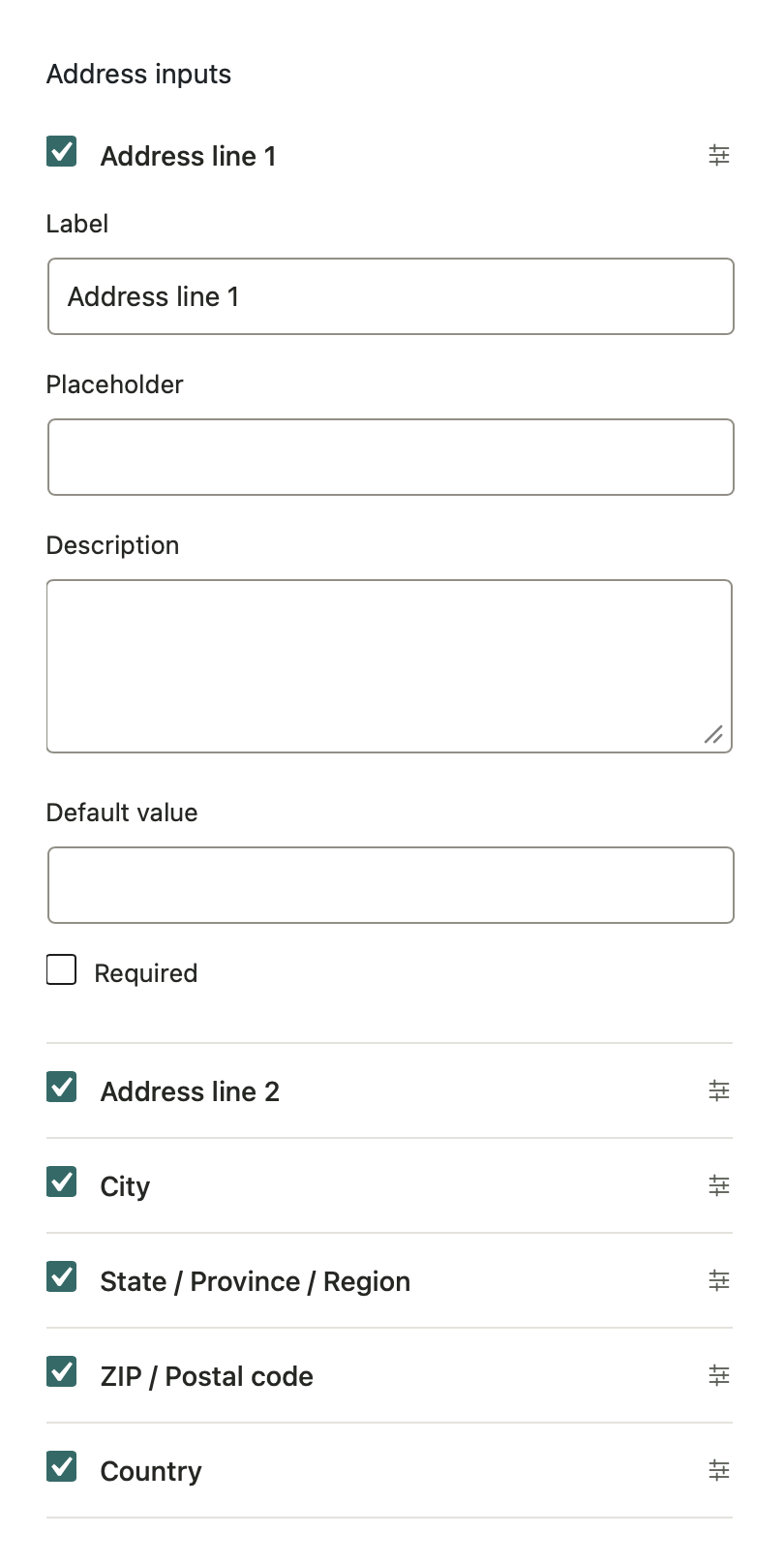
| Address inputs | All six parts start enabled and optional. Expand a part to set its Label, Placeholder, Description, Default value and Required flag. Country's default uses a country selector. At least one part must remain enabled. |
| Allowed countries | Leave empty to allow the effective country/territory catalog, or choose the countries that visitors may submit. A nonblank default must belong to the allowed list. |
| Enhanced country control | Off by default. Enable a searchable country dropdown on the visitor form. A native select remains usable when JavaScript is unavailable. |
Applicable shared options
This field also provides Description placement, Validation message placement, Sub-label placement, Label, Description, Required message, Invalid value message, CSS classes, Hide label, Admin label, Visibility. See common field options for their behavior.
Review Visible, Hidden and Internal before changing presentation. Static hiding differs from conditional applicability.
Dynamic population offers Disabled, Parameter. Parameter name binds an external URL or embed value. Submitted or cleared answers are not refilled.
Answers and behavior
Requiredness belongs to each enabled component; the whole field's required marker is derived. Its rows have a fixed order: Line 1; Line 2; City/State; Postal/Country. A lone enabled part fills its row, empty rows disappear and paired inputs stack on narrow screens. The editor does not offer input reordering.
Hiding Country is not a fixed-country mode: it leaves new country values blank. Use an enabled Country input with a suitable default when visitors should supply that value. No country is inferred from IP address, locale or language. State remains text; the field does not automatically supply dependent regional choices.
Postal codes remain strings, preserving letters, spaces and leading zeros. The field does not impose one universal postal-code pattern. Text components use their shared 255-character limit. Initial defaults do not refill deliberately cleared answers.
The saved answer has named parts: line1, line2, city, state, postal_code and country. Country uses a lowercase code. A whole-field merge tag formats the address with a country name; a country-part tag returns its code. Current labels and layout do not rewrite historical values.
Example and checks
For a mailing address, require Line 1, City, Postal code and Country if those parts are needed by your process; leave Line 2 optional. Narrow Allowed countries only when the form really serves that set. Set a default Country only when it is a useful starting value, rather than an assumption visitors cannot correct.
Test an allowed and excluded country, a required missing part, a postal code beginning with zero and the phone layout. Changing the allowed list must not leave an incompatible static default. The search enhancement in the builder's Allowed countries picker is separate from the visitor-facing Enhanced country control.
Use Parameter dynamic population for structured external initial values. A built-in current-user postal-address mapping is not provided by this field.
Use the testing checklist to check validation and the saved entry. Explore all fields provides live examples.
